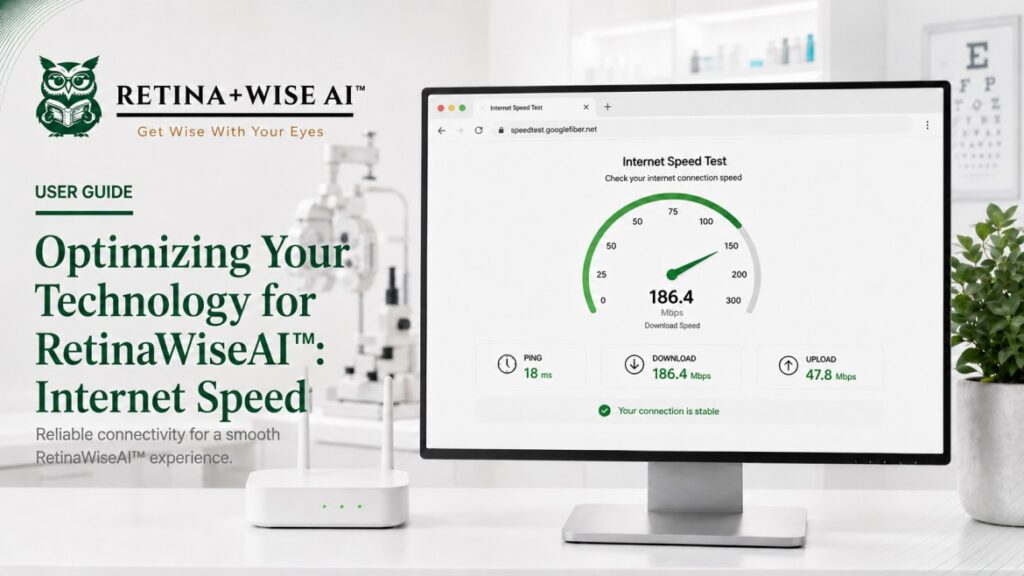
A stable internet connection helps RetinaWiseAI deliver the best experience, especially when your team is viewing historical patient data or accessing the platform away from the clinic. If RetinaWiseAI feels slower than expected, begin by checking the internet connection on the device you are using.
- Open Google Chrome or Microsoft Edge on the computer or tablet used with RetinaWiseAI.
- Open a trusted internet speed test, such as the Google Fiber speed test.
- Select “Go” or “Start” and allow the test to finish.
- Review the ping, download speed, and upload speed shown in the results.
Ping: Measures how quickly the connection responds. Lower numbers generally provide a smoother experience. A ping near 15 milliseconds or lower is preferred.
Download speed: Affects how quickly information and images load. For the strongest experience, business-class speeds in the range of 300-400 Mbps are recommended.
Upload speed: Affects how quickly information is sent from the clinic. A speed close to 100 Mbps is recommended when available.
| Important: Slower speeds may not prevent the clinic from capturing current patient scans, but they may reduce performance when loading historical records or viewing patients remotely. |
If the results are consistently below the recommended range, ask your internet service provider about a business plan or higher-speed option. Clinics should also confirm that the device is connected to the correct network and that other high-bandwidth activity is not affecting performance.
For assistance with RetinaWiseAI, call 1-844-2-THEOWL.